Lithium-ion batteries generally degrade fastest when kept at a high state of charge, meaning that keeping your iPhone or Mac battery at 100 percent accelerates chemical wear that permanently reduces its actual capacity over time.
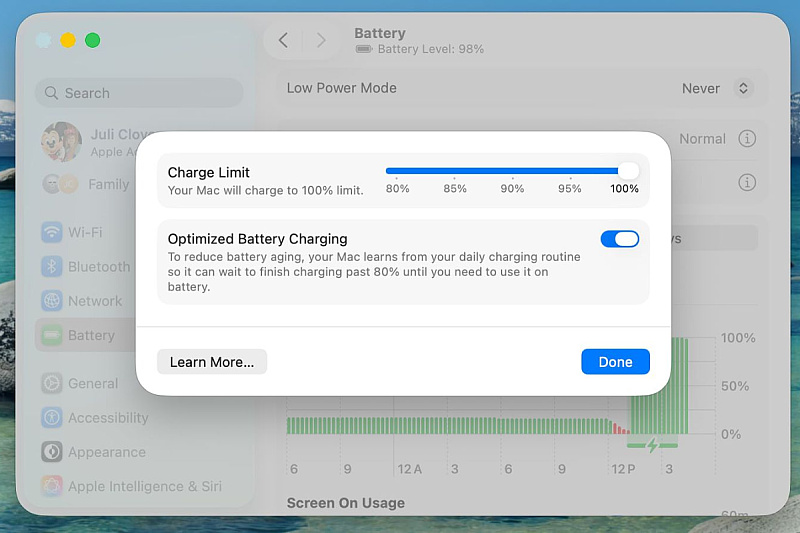
To mitigate this on the iPhone 15 and newer models, Apple allows you to set a charging limit that prevents the device from charging beyond 80, 85, 90, 95, or 100 percent. With macOS Sequoia 15.4, Apple has now brought the same charging limit feature to Mac computers for the first time.
This option differs from Optimized Battery Charging, which "learns" your daily routine and delays charging past 80 percent until you need a full battery. However, depending on usage, a Mac may still regularly reach 100 percent.
Setting a charging limit prevents that. Obviously, a lower charging limit means less time you'll be able to spend working away from an outlet, but if you mostly sit at a desk with your MacBook plugged in, the trade-off is worth it for long-term battery preservation. However, if you regularly rely on your Mac when unplugged, you might want to choose a higher limit, which should still reduce battery wear without leaving you completely stranded. In any case, here's how to set this feature:
That's it. Your Mac will then stop charging when it reaches the level you selected, and Optimized Battery Charging will continue to run in the background unless you turn it off in the same panel.
Note that even when Optimized Battery Charging is set to a limit below 100 percent, your Mac will occasionally charge to 100 percent so macOS can maintain accurate battery level estimates, but it will generally adhere to the specified maximum level.